How to PXE/netboot a raspberry pi 4B from start to finish
date published : October 05, 2021 read time : 20 minsHello! If you’re reading this, you’ve probably got some interest in PXE booting. This blog post will be a fairly in-the-weeds look at how to setup a Raspberry Pi 4B microcomputer to boot directly from a TFTP server, using DHCP as its discovery method, and a network-attached disk storage system for the root file system. So, at the end of this process the Pi will boot from, and access all its system files from the local NAS. Buckle up!
I will eventually post a link to an Ansible playbook for this and push it to Github. I’ll update this area with the link!
Why?
In my experience, micro-SD card performance is nothing short of terrible for the workloads I want to run. My goal was to improve IOPS and throughput on the root file system, with systems I already had (my NAS), for my pi cluster before I hooked them up to kubernetes.
Resources
First I would like to acknowledge a couple of resources that really helped along the way, namely, Darknao’s blog post for doing this with a 3B+, as well as the official network boot documentation from raspberrypi.com. Unfortunately, it seems like Darknao’s blog is unreachable for the moment, so be sure to use the wayback machine link if you need to. Many of the methods and commands for using iSCSI, initramfs, etc came from Darknao’s post, so I am immensely grateful for their effort.
Pre-requisites
Here’s what you’ll need before beginning:
- A NAS of some type — in my case a Synology NAS
- A DHCP server capable of advertising DHCP options (specifically option 150 for tftp) — for this I am using a Ubiquiti Unifi USG and a raspberry pi running the Unifi Controller software
- Micro-SD Card + reader
- Raspberry pi imager software, for writing raspbian to the SD card
- At least 1 raspberry pi
- Ethernet cable (netboot is unavailable over wifi for pi)
Disclaimer
This post is not meant for beginners to linux. Some of these commands could brick your raspberry pi if you do the wrong thing. If you do not know what something does, do not execute it!
Getting Started
Ok, so now that we’re done with the pre-reqs let’s go ahead and jump into this. You can assume that when you’re getting started with netbooting you will probably screw up several times, so it’s useful to be aware of what the troubleshooting loop looks like. I’m sure that if you are a very advanced user you’ll know better than me, but this is what I did:
- Hook up pi to mini-hdmi <-> hdmi connection, usb keyboard
- Use another computer to write Raspbian image to micro-sd card
- Take SD card and plug it into pi
- Boot pi, make config changes incrementally using either hard-wired keyboard, OR via ssh once you have that setup
- Uh oh! You screwed up the pi (again), and it’s boot-looping or something. Start back over from step 2
Luckily for us, raspberry pi can be booted with a fresh install of Raspbian + bootloader via micro-sd card, and all will be well again. So, keep the above loop in mind while you execute the steps below.
Update Raspbian
After installation you’ll need to update Raspbian via normal aptitude commands as well as get ssh running. Note: You’ll need root privileges to do almost everything here. Also, I am intentionally not commenting on security here like changing default password, locking down ssh, etc.
The first thing I did when booting up Raspbian was change the locale, language, and keyboard settings as they use settings from the UK..I am not from the UK.
localectl set-locale LANG=en_US.UTF-8Update repos and upgrade the distribution to latest, then make sure ssh will start on boot, and start it immediately
apt-get update -y && apt-get upgrade -y
systemctl enable ssh && systemctl start ssh
Next we need open-iscsi to be able to connect to our NAS. I also take the time to install vim, but in general you may not want the default editor, nano, so take the time to install it now.
apt-get install -y open-iscsi vim
export EDITOR=vim  # Set this in bashrc if you want
Delete the following line from /lib/modules-load.d/open-iscsi.conf:
ib_iserThis line simply causes an error during startup and can slow things down once you start netbooting. Also, it’s nice to have a clean startup with no errors :).
Reboot the pi now.
Setting up the LUN & Volumes
A general synposis of how LUNs will be setup is: LUNs are configured to target NAS Volumes, and a LUN will in turn be connected to by 1 raspberry pi. Keep in mind that multiple LUNs can target the same volume, which is indeed a trick I use to to keep Synology’s DSM software from alerting about low-capacity volumes. So, in my case I created one big 200GB volume and then attach each LUN of some smaller size (40GB let’s say) to it, creating a new LUN each time.
In order to connect to the NAS, you obviously need to know the IP address of the NAS before using iscsi admin commands. Also, you’ll need to record the IQNs after creating the LUNs as they’ll be used in several times in our setup.
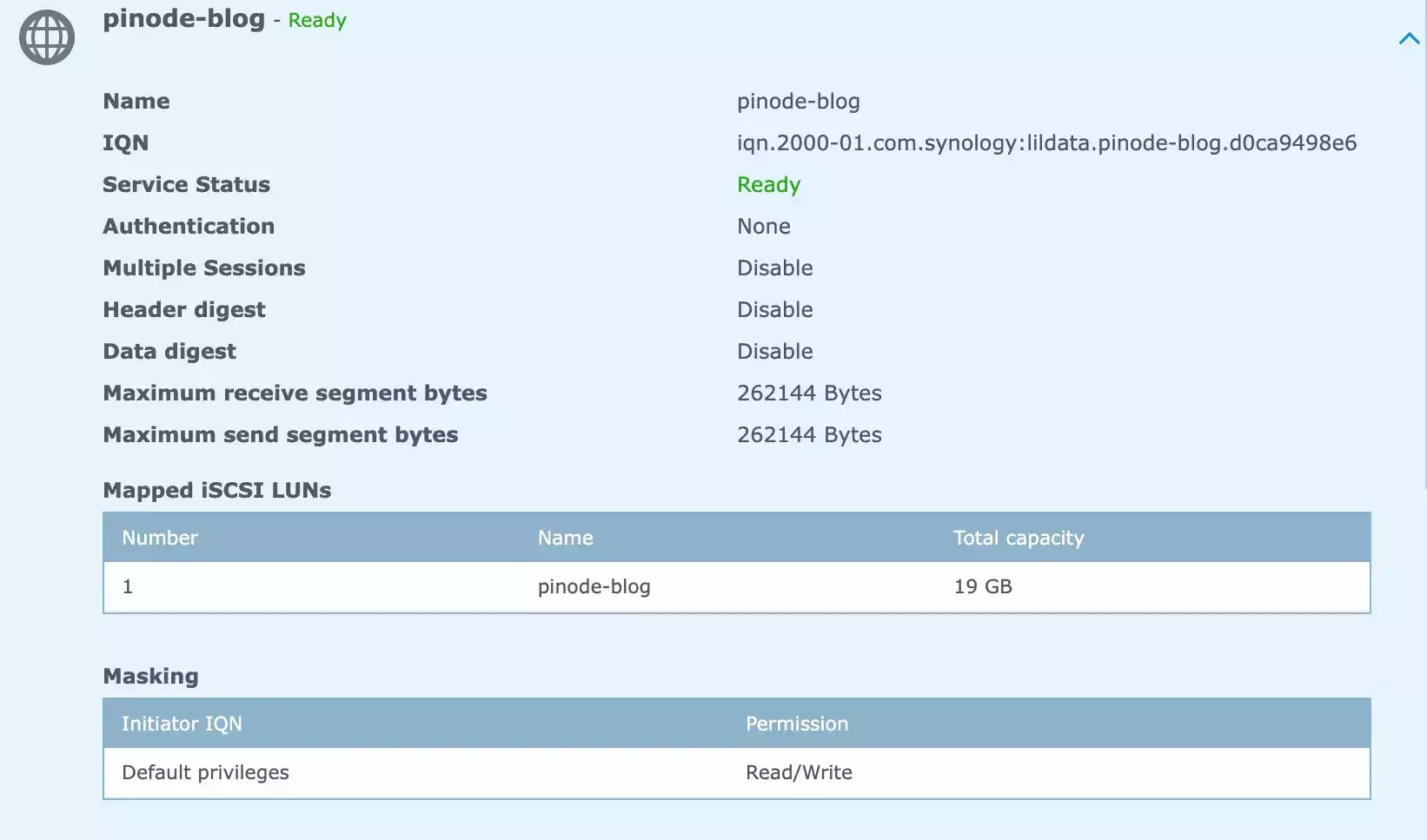
Now we can use that LUN and connect to it from our raspberry-pi:
$ iscsiadm -m discovery -t sendtargets -p <NAS IP addr>
...
$ iscsiadm -m node -l -T <IQN we saved> -p <NAS IP addr>
Logging in to [iface: default, target: iqn.2000-01.com.synology:lildata.pinode-blog.d0ca9498e6, portal: ....] (multiple)
Login to [iface: default, target: iqn.2000-01.com.synology:lildata.pinode-blog.d0ca9498e6, portal: ....] successful.
You should be now be able to verify that it connected correctly. There are several ways to verify this:
$ fdisk -l | grep -i iscsi -A3
Disk model: iSCSI Storage
Units: sectors of 1 * 512 = 512 bytes
Sector size (logical/physical): 512 bytes / 512 bytes
I/O size (minimum/optimal): 512 bytes / 512 bytes

$ lsblk
NAME        MAJ:MIN RM  SIZE RO TYPE MOUNTPOINT
sda           8:0    0   19G  0 disk
A cute trick I picked up when writing the ansible playbook for this is a foolproof method of checking the exact path to the iSCSI target on disk. You check /dev/disk/by-path/ip-readlink -e on that symlink, which will resolve to something like /dev/sda or /dev/sda1. This works around side effects of USB devices being loaded before iSCSI, so you never select the wrong device. It’s not typically required for manual investigation, however.
Alright, looking good. Next step is to make sure the file system is created on the device volume — you can use whatever file system you desire here; I typically use ext4 as my default.
$ mkfs.ext4 /dev/sda
mke2fs 1.44.5 (15-Dec-2018)
Creating filesystem with 4980736 4k blocks and 1245184 inodes
Filesystem UUID: 53380547-13ff-4c3e-85f5-cedd483932a2
Superblock backups stored on blocks:
	32768, 98304, 163840, 229376, 294912, 819200, 884736, 1605632, 2654208,
	4096000

Allocating group tables: done
Writing inode tables: done
Creating journal (32768 blocks): done
Writing superblocks and filesystem accounting information: done

$ mkdir /mnt
$ mount /dev/sda /mnt
$ ls -l /mnt
total 16
drwx------ 2 root root 16384 Oct  6 16:53 lost+found
Setup Initramfs
Initramfs is used to hook up iscsi at boot time as a root file system. Since we will not be using a local hardware media like SD Card or USB to boot from, the kernel must be able to find system files somewhere. Obviously that somewhere is an iSCSI LUN; but the client machine requires the iSCSI kernel module to be loaded before it can login to iSCSI targets. So, we get that kernel module loaded through an init ram disk (initrd) during the early stages of boot, allowing linux to use iSCSI before most other things are available, and just after it acquires an IP address through DHCP.
# Verify that /boot/initrd* doesn't exist
$ readlink -e /boot/initrd*

# Setup iscsi to run during init
$ sed -i 's,^#INITRD,INITRD,g' /etc/default/raspberrypi-kernel
$ touch /etc/iscsi/iscsi.initramfs
$ update-initramfs -v -k $(uname -r) -c > initramfs.log

# In case you want to verify iscsi was included for sure
$ grep -i 'iscsi' initramfs.log
$ rm -f initramfs.log

# And you should have an initrd image in /boot
$ ls -l /boot/initrd*
Bootloader File Changes
Now we will configure the pi bootloader for the next reboot.
During boot time the bootloader uses config settings from files in the /boot directory. Only two files are of interest to us, and if these files are not configured correctly then the pi may not boot properly; it could hang forever, boot-loop, boot into an error screen, show nothing but an empty prompt, etc.
Our boot files of interest are:
- /boot/cmdline.txt
- /boot/config.txt
We first need to copy & save the serial number of the pi we’re working on:
cat /sys/firmware/devicetree/base/serial-numberTake that output and and paste it in TFTP_STR_PREFIX=<serial number>/. The forward slash is important.
Create a file at /tmp/bootconf.txt:
TFTP_PREFIX=1
TFTP_PREFIX_STR=<serial number>/
BOOT_ORDER=0xf241
This file will be passed to the update script for flashing EEPROM.
The BOOT_ORDER setting controls what media the bootloader tries until success or reaching an error state. It reads from right-to-left, so make sure you’re aware of that before customizing it to your liking. For ease of incremental development, I use the boot order above, which is SD Card -> USB Drive -> Network -> Restart — (f241). Instead of restart you could have the pi stay on an error screen which is probably more debug-friendly.
You can read more about this in the raspberry pi documentation.
Next file: /boot/cmdline.txt. For this file you will need the following information:
- filesystem type: ext4 for me, maybe different for you
-
root fs:
blkid -o value -s UUID /dev/sda- /dev/sda is the device path from above, it may be different for you
- raspberry pi hostname: Your choice (pinode-blog for this post)
- iscsi initiator name:
cat /etc/iscsi/initiatorname.iscsi | awk -F'=' '{printf $2}' - NAS IP addr (called ISCSI_TARGET_IP)
Now replace anything in alligator brackets <> with that information:
console=serial0,115200 console=tty1 rootfstype=<file system type> elevator=deadline fsck.repair=yes rootwait quiet splash plymouth.ignore-serial-consoles ip=::::<raspberry pi hostname>:eth0:dhcp root=UUID=<root fs UUID> ISCSI_INITIATOR=<iscsi initiator name> ISCSI_TARGET_NAME=<IQN target> ISCSI_TARGET_IP=<NAS IP addr> ISCSI_TARGET_PORT=3260 rwNote: your ISCSI_TARGET_PORT may differ from 3260, although it probably shouldn’t unless you have a very specific setup.
Use the initrd image file name that we created and add it to the end of /boot/config.txt:
initramfs initrd.img-5.10.63-v7l+ followkernelNow we can flash eeprom with files that we changed
$ cp $(sudo find /lib/ -name *eeprom*.bin | grep stable | sort | tail -n1) /tmp/
$ rpi-eeprom-config /tmp/pieeprom-*.bin --config /tmp/bootconf.txt  --out /tmp/pieeprom-new.bin
$ rpi-eeprom-update -d -f /tmp/pieeprom-new.bin && rm -f /tmp/bootconf.txt
Now the bootloader is prepped with our config changes, from here a reboot will have it attempt to load iscsi at boot via initramfs, as well as netboot, and the other config changes we made. There are some missing pieces however, so do not reboot yet.
Change fstab and dhcpcd.conf
The file /etc/fstab needs to be updated with instructions on how to autoload our root file system during kernel startup. Use the output from sudo blkid -o value -s UUID /dev/sda (or whatever device iscsi is listed under) for the UUID= portion.
/etc/fstab:
proc                                            /proc           proc    defaults          0       0
UUID="9dc27643-ec39-41f9-99b0-9f7b91234224"     /               ext4    defaults          1       1
Note: Getting fstab’s configuration wrong will cause the pi to not boot up correctly. So, if that’s happening, it’s very likely a mistake here, or an underlying issue with the root filesystem. Pay close attention to the next section!
Add following line to /etc/dhcpcd.conf:
denyinterfaces eth0Seed the pi root fs
Now we copy over the current files from the current root file system over to our future rootfs on iSCSI.
First create the structure for system runtime directories, if they are not there during startup the process will error out:
$ mkdir --mode=0755 /mnt/{dev,proc,sys,boot,run,mnt}
$ sudo rsync -avhP --exclude /boot --exclude /proc --exclude proc --exclude /sys --exclude /dev --exclude /mnt --exclude /run / /mnt/
Rsync the /boot directory to your controlling machine (laptop, desktop, bastion host, whatever) so you can upload them to your TFTP server once it’s setup:
rsync -avz pi@pinode-blog:/boot/ ./pinode-blog/100000006acac13b/When we reboot, the pi will no longer have a populated boot directory to work from, it’ll be fetched entirely from the TFTP server for stage 1, and then the rest of the system files come from the iSCSI rootfs for stage 2 of booting.
Pi’s done, now for TFTP & DHCP
Ok, the pi is finished with its initial PXE configuration and we have its entire /boot directory locally. It is ready to boot up and look for a TFTP server that it finds through DHCP…except DHCP isn’t currently advertising that, and there’s no TFTP server to speak of.
The next steps will depend on what stack you’re running, so I will show you from my specific case with Synology and Unifi how I set it up. Ideally, the concepts should translate, but if they don’t you’ll need to do some digging on your own.
In summary, you will:
- Setup a DHCP server which advertises the IP address of a TFTP server & folder fetch from for PXE booting
- Make DHCP advertise the file to download from TFTP in order to start the PXE boot process on a client pi
- Setup a TFTP server at that IP address that has a folder populated with boot directories, one for each pi under your control and named with the serial number of the relevant pi.
The structure should look something like this:
1000000001b9ffc9/
1000000010b64a48/
10000000488239ee/
10000000589db221/
100000006abbb13b/
10000000841f689c/
$ tree -L 2
.
├── 1000000001b9ffc9
│ ├── COPYING.linux
│ ├── LICENCE.broadcom
│ ├── bcm2708-rpi-b-plus.dtb
│ ├── bcm2708-rpi-b-rev1.dtb
│ ├── bcm2708-rpi-b.dtb
│ ├── bcm2708-rpi-cm.dtb
│ ├── bcm2708-rpi-zero-w.dtb
│ ├── bcm2708-rpi-zero.dtb
│ ├── bcm2709-rpi-2-b.dtb
│ ├── bcm2710-rpi-2-b.dtb
│ ├── bcm2710-rpi-3-b-plus.dtb
│ ├── bcm2710-rpi-3-b.dtb
│ ├── bcm2710-rpi-cm3.dtb
│ ├── bcm2711-rpi-4-b.dtb
│ ├── bcm2711-rpi-400.dtb
│ ├── bcm2711-rpi-cm4.dtb
│ ├── cmdline.txt
│ ├── config.txt
│ ├── fixup.dat
│ ├── fixup4.dat
│ ├── fixup4cd.dat
│ ├── fixup4db.dat
│ ├── fixup4x.dat
│ ├── fixup_cd.dat
│ ├── fixup_db.dat
│ ├── fixup_x.dat
│ ├── initrd.img-5.10.17-v7l+
│ ├── issue.txt
│ ├── kernel.img
│ ├── kernel7.img
│ ├── kernel7l.img
│ ├── kernel8.img
│ ├── overlays
│ ├── pieeprom.sig
│ ├── pieeprom.upd
│ ├── recovery.bin
│ ├── start.elf
│ ├── start4.elf
│ ├── start4cd.elf
│ ├── start4db.elf
│ ├── start4x.elf
│ ├── start_cd.elf
│ ├── start_db.elf
│ └── start_x.elfDHCP
Here’s roughly how I have Unifi Controller setup with DHCP, keeping in mind the IP addresses are changed:
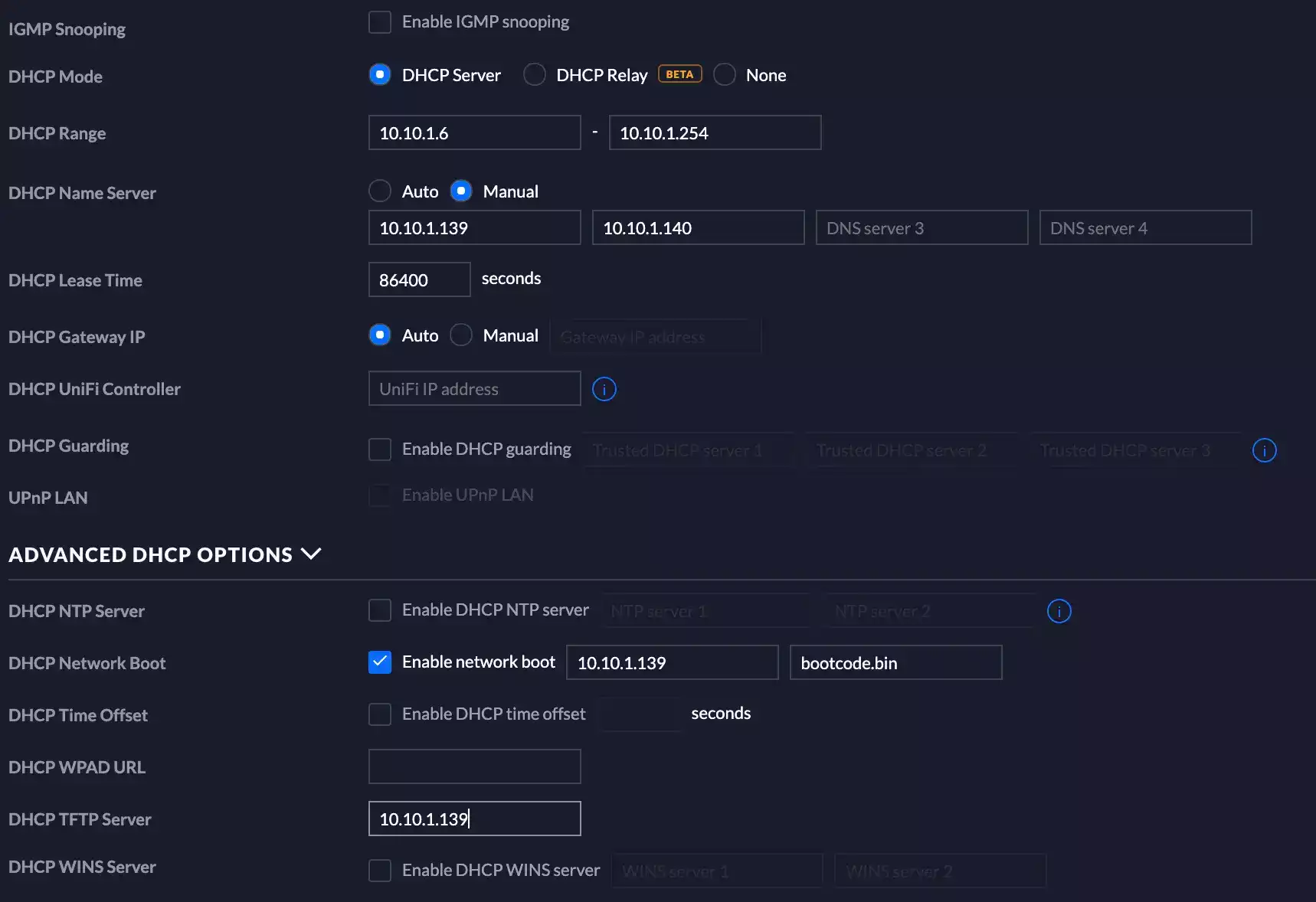
Importantly: enabling network boot, setting the TFTP server IP address, and naming the file the same as it would be on disk is what you need to look out for.
I’m unsure why it needs the IP address twice in the old controller UI, but here we are.
TFTP
Ok, since I’m using a Synology NAS, all this stuff is clicky and not clacky, which means I can only show screenshots.
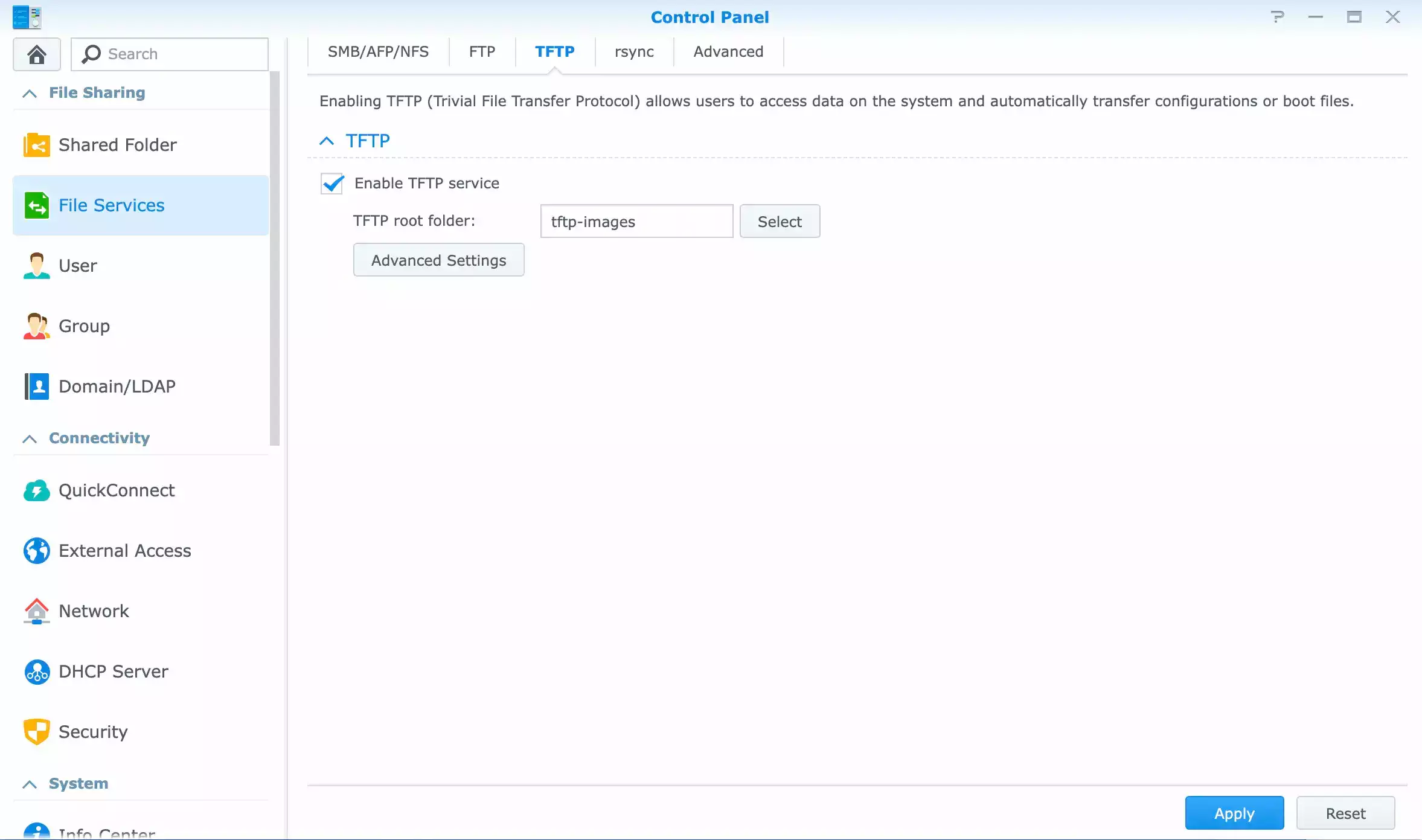
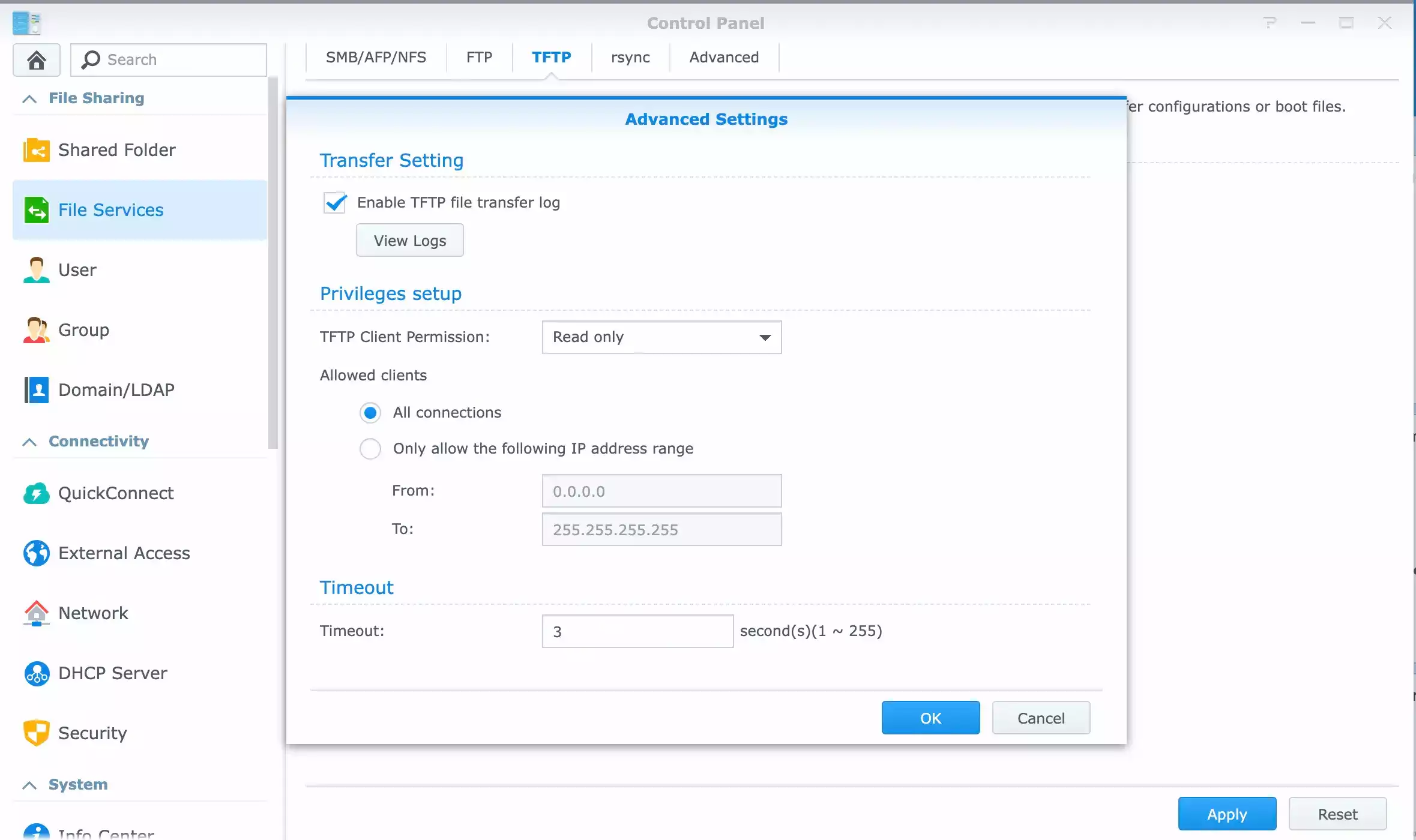
So you enable tftp, setup a shared folder with a backing volume somewhere in your storage pools in Synology. You grant guest access to be read-only (required). This way guest clients can read whatever is in that shared folder, but cannot write to it.
Then, you just upload the file structure (above) exactly as it should be in Synology File Station, and your pi should be able to fetch those files.
I recommend enabling tftp file access logging so you can see attempts and failures when troubleshooting.
Finally!
Finally, if all went well, we should be done, there’s just one last step to do: reboot..twice. Currently, I am not sure why reboot twice is required, but the first time it seems that the bootloader changes do not take full effect until the next time. Make sure to remove the SD card so it doesn’t try to boot off of that.
And that’s it! If you made it this far, thanks for sticking with it, and I hope you found this valuable :).